How TourBook coordinates a tour.
TourBook turns a stack of listing flyers into a confirmed, scheduled tour. It does the emailing, the chasing and the re-planning, and brings you in for the decisions.
1. Set up the tour
Give TourBook the client name, the date, a start time, how you're travelling and how long to allow at each stop. You can also say what the client needs the space for, which the outreach emails mention. You don't enter an end time; TourBook works out when the tour will finish from the stops.
2. Upload the listing flyers
Upload each property's flyer as a PDF. TourBook reads it for the address, available spaces, listing-agent contacts, photos and description, and you review what it found before the stop is saved. You can also enter a listing by hand.
3. Review a proposed route and times
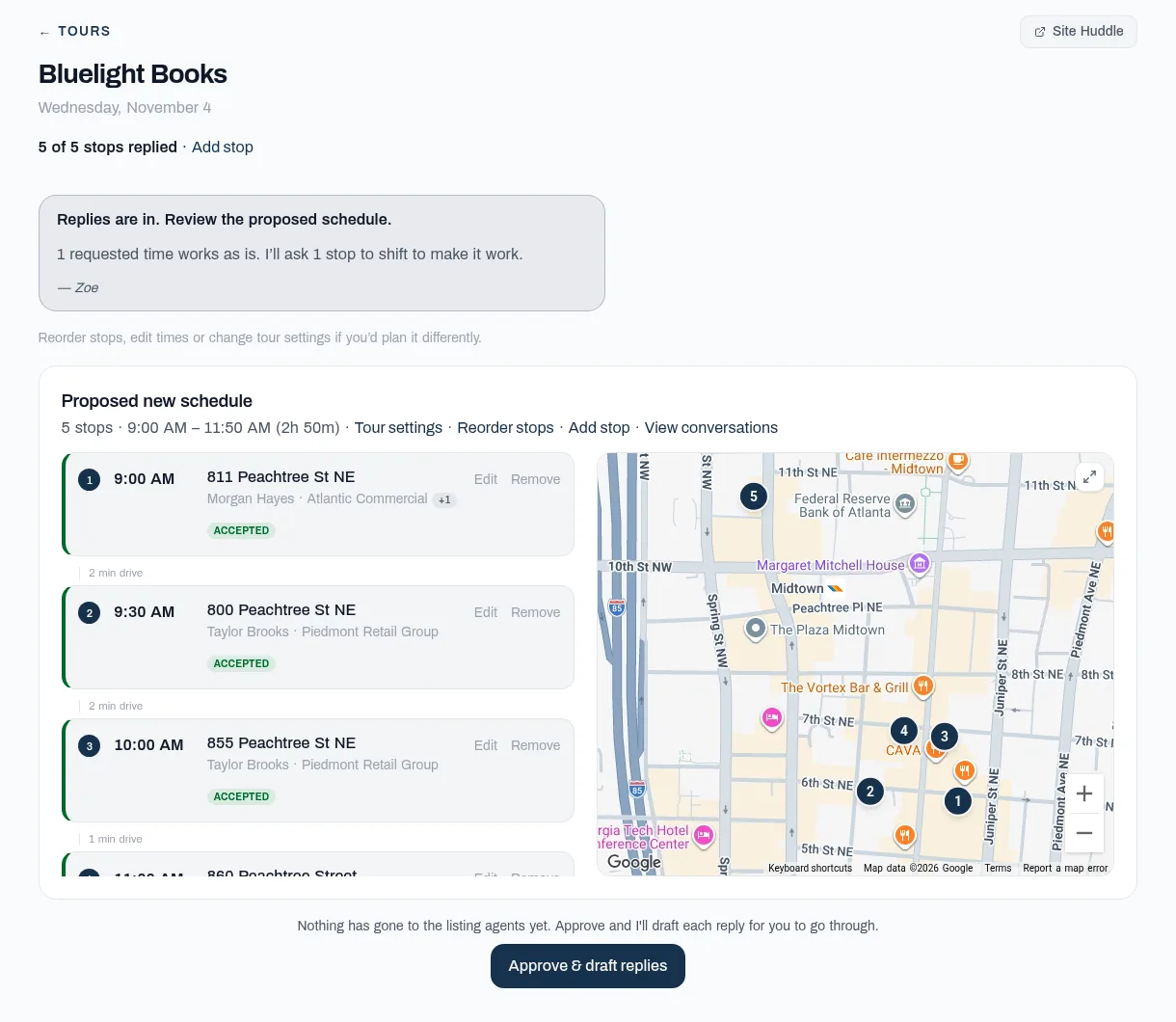
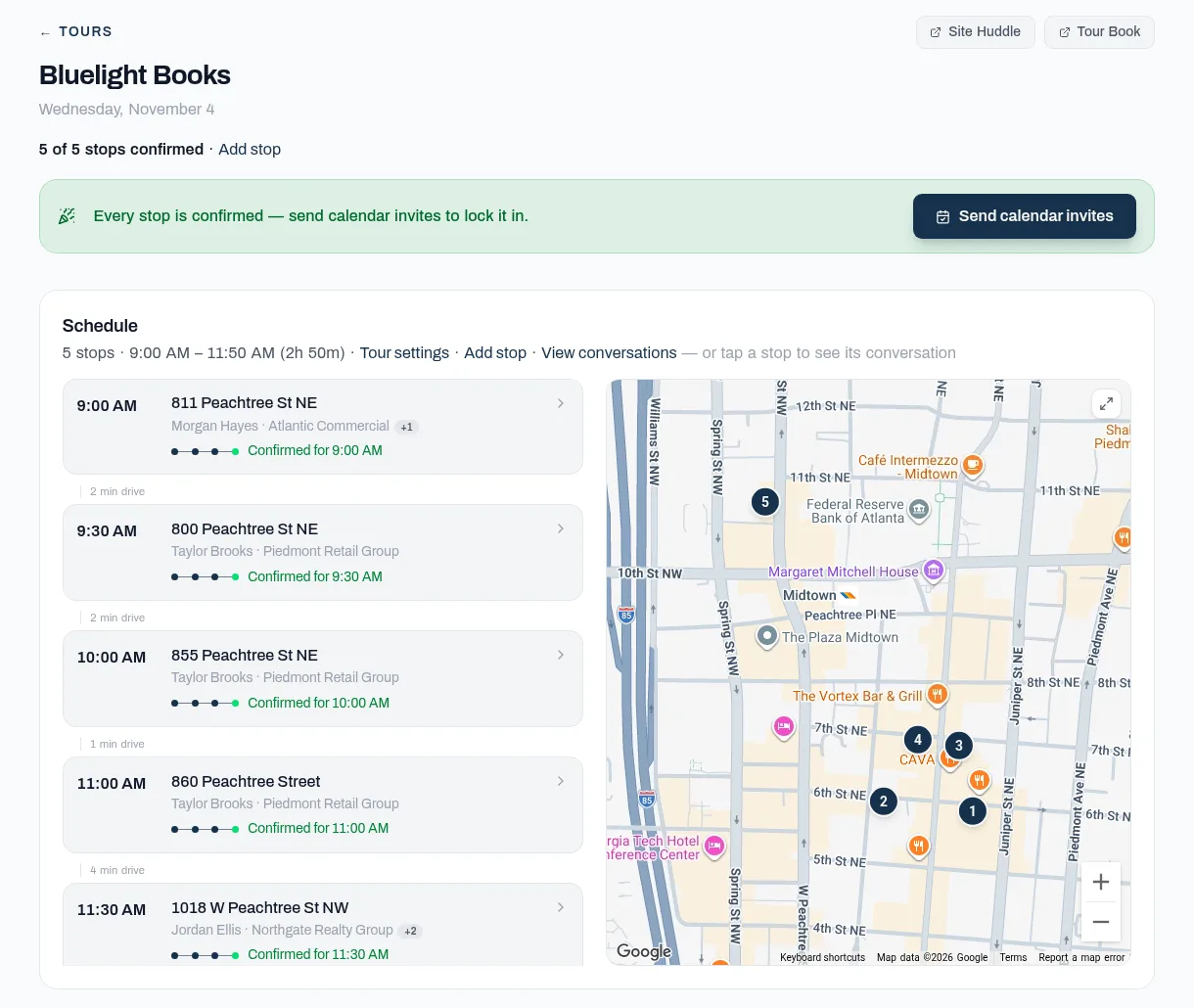
TourBook orders the stops using Google Maps drive times and proposes a time for each. You review the schedule first and the drafted emails second, and nothing is sent until you start outreach. You can reorder stops or edit a time before then.
4. Your coordinator emails every listing agent
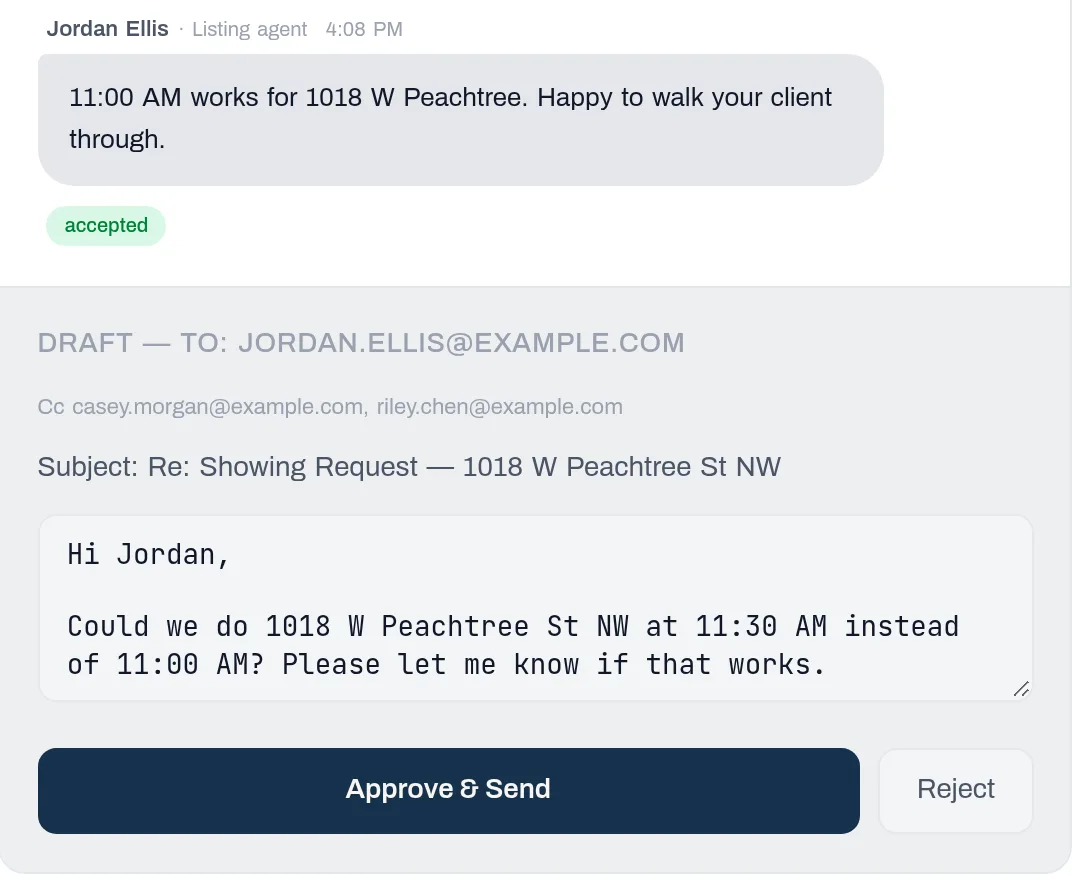
Messages go out from a TourBook address under a coordinator name you choose, signed on your behalf, with you copied on everything. Co-brokers listed on the flyer are copied too. Choose Review each to approve every draft, or Autopilot to let routine messages send automatically.
5. It tracks replies and chases the quiet ones
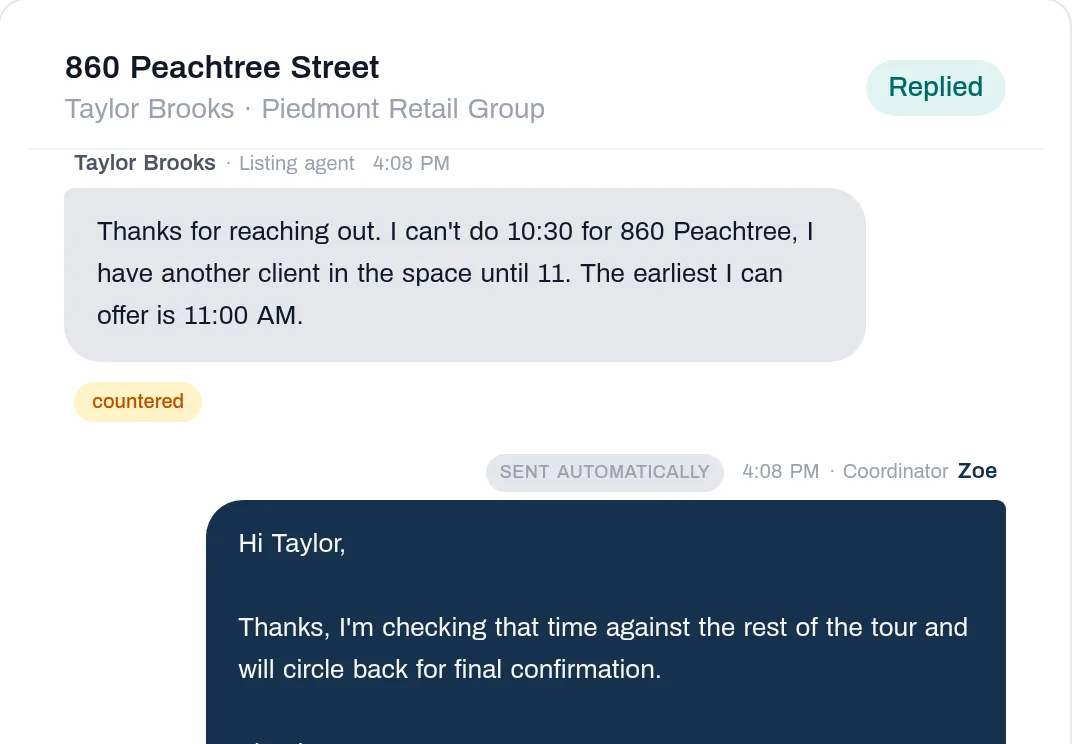
Each reply is read and recorded as accepted, a counter-offer, a decline, or something it couldn't interpret, which is flagged for you. If an agent doesn't answer, TourBook follows up about 6 hours after the first email and again about 12 hours later, never between 9 pm and 8 am local time, and then tells you it couldn't reach them.
6. Conflicts are resolved once, with your approval
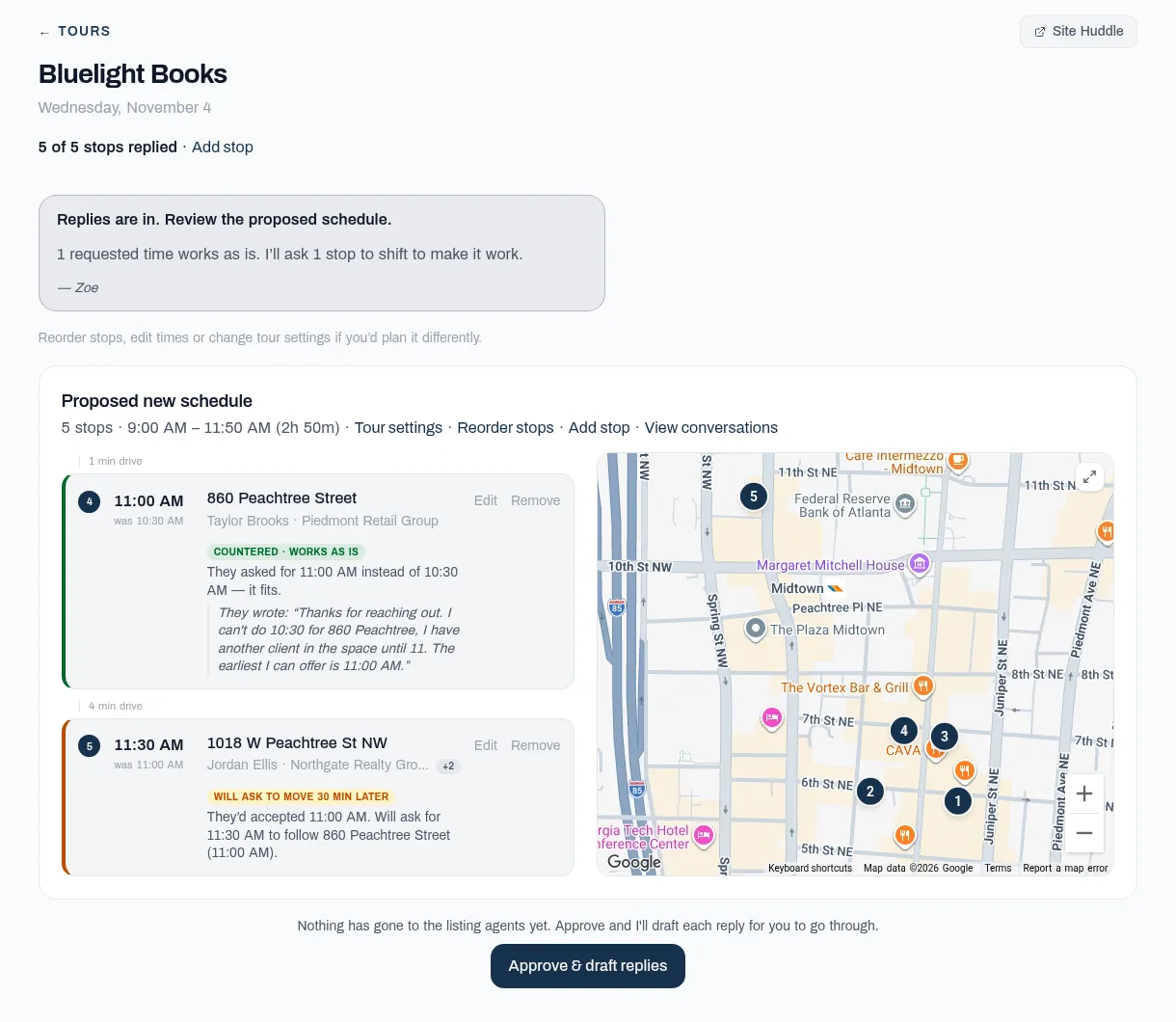
A counter-offer is held until every contacted stop has answered. Then TourBook re-times the tour and shows you the proposed schedule: which stops stay as they are, which it needs to ask to move, and, if a counter leaves a long gap, options such as dropping that stop or starting later. Anything that moves a confirmed stop, leaves a long gap or runs the tour well past its planned finish waits for you, in both modes.
7. Confirm, then share the Tour Book
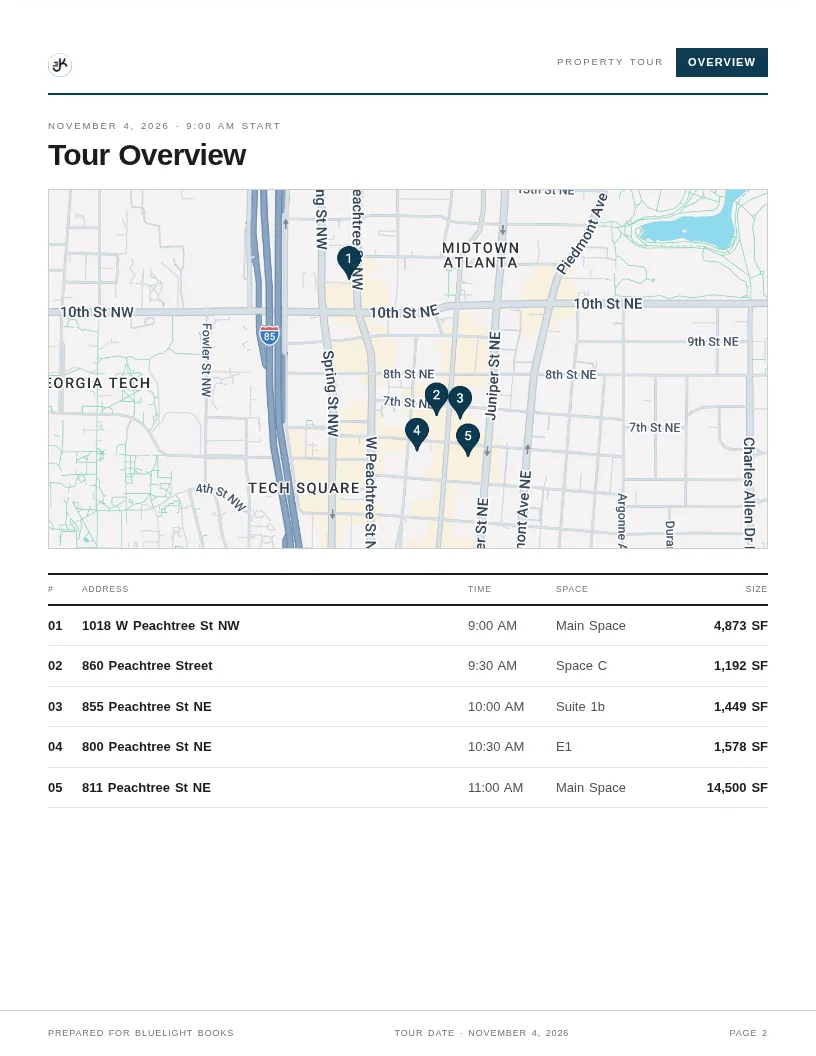
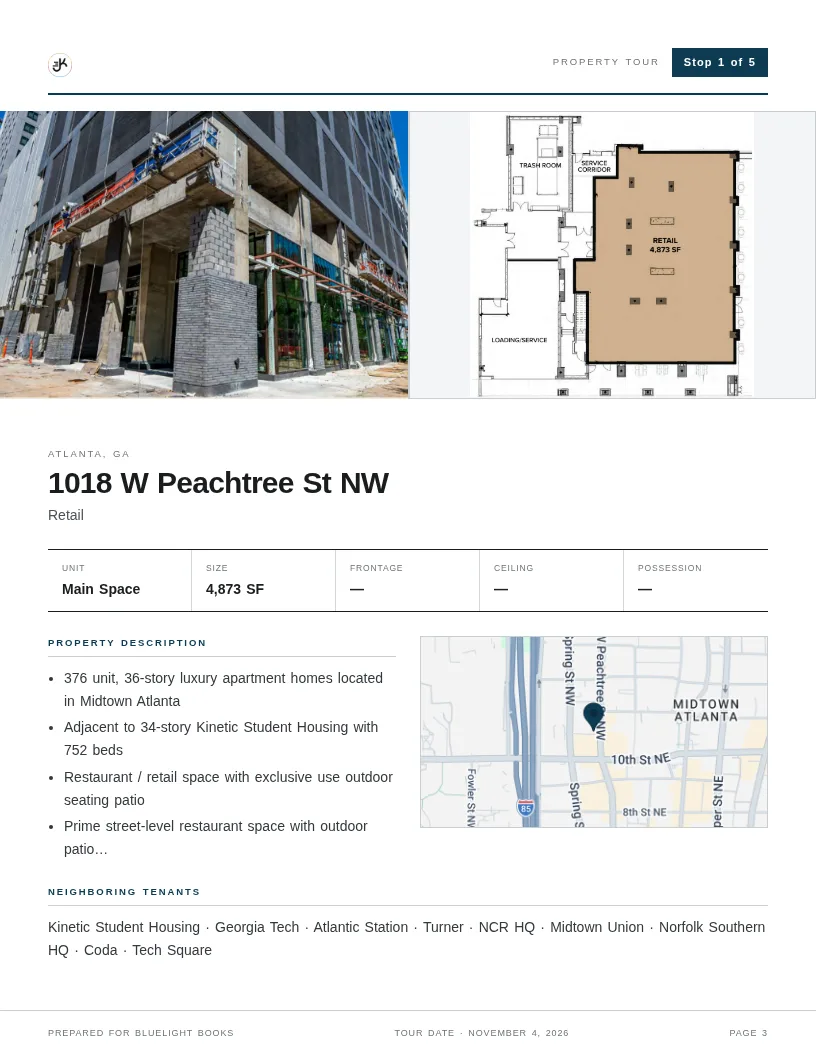
When every stop is confirmed, TourBook sends calendar invites and builds a Tour Book: a shareable page, with a PDF, holding the schedule, an overview map and one page per stop. On tour day, day-of mode shows the schedule and contacts and can email the next agent if you're running late. A Site Huddle gives your client and colleagues a shared space to follow along and comment.
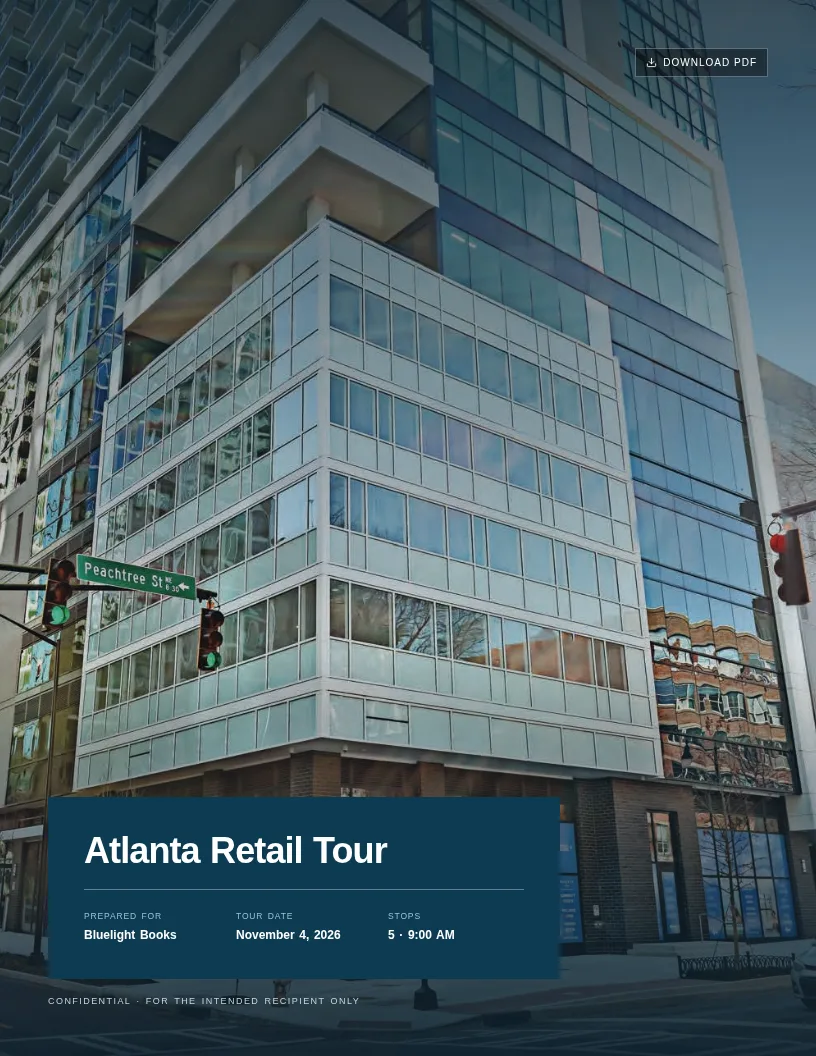
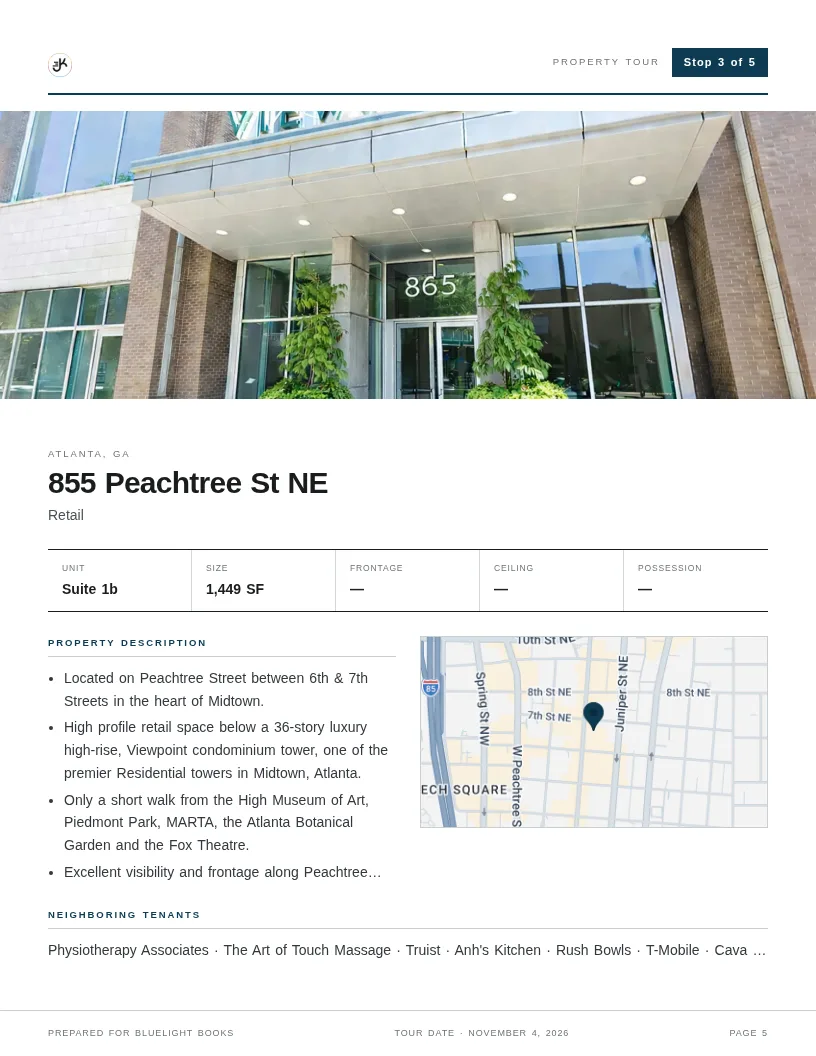
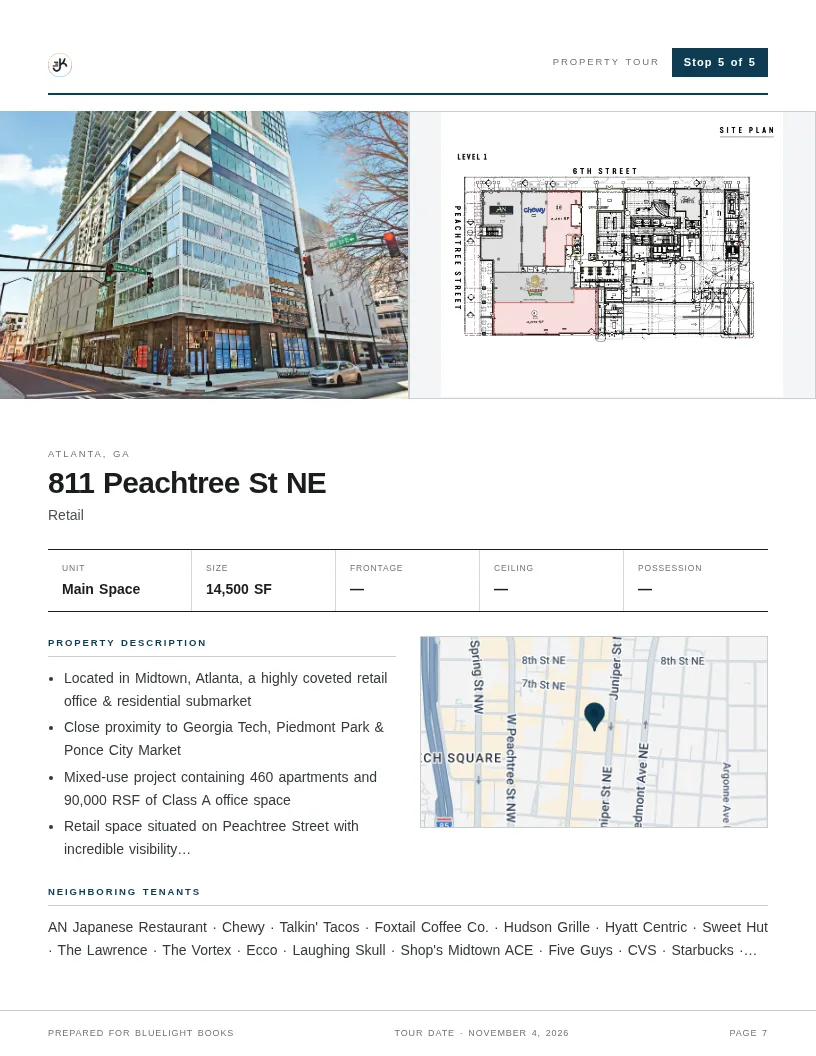
Page 1 of 5: Cover
A sample Tour Book. Demonstration tour: real property addresses, fictional listing-agent names and simulated replies.
Questions
Answers to the common ones are on the FAQ, and a full worked example is in scheduling commercial tours as a tenant rep.
Your next tour, without the email chase.
Join our tester program.